ComfyUI's MiniMax H3 template shows about a dozen numbers. Most should stay where the template puts them; a few change your clip a great deal, and a few change only how long it takes.
This guide shows where each setting is, what it does, the value to start from and when to move it. For what each part of the template is, see MiniMax H3 in ComfyUI: what every part does.
A few words first
- Noise: random static. H3 starts every clip from noise and cleans it up a little at a time.
- Step: one round of that cleaning. Each step runs the whole video model once.
- Seed: the number that decides which random noise the clip starts from.
- Sampler: the method that removes the noise at each step.
- Scheduler: the plan for how much noise is left after each step.
- Megapixels (MP): millions of pixels in one frame. 1344 × 768 is about 1 MP.
- LoRA: a small add-on file that adjusts the model.
Where the settings are
The settings you are likely to change are on the outside of the template's main box and on the Resolution Selector next to it.
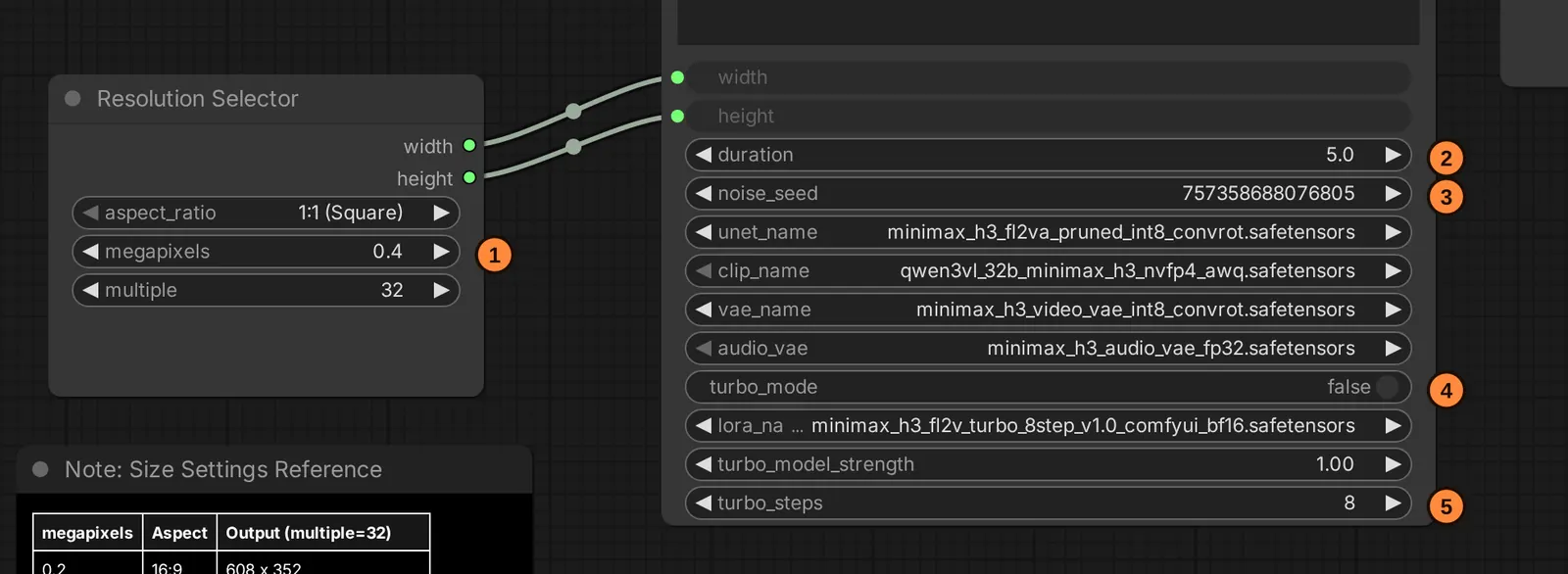
- megapixels sets the clip's size; the aspect ratio row above it sets its shape.
- duration is the clip's length in seconds.
- noise_seed is the seed.
- turbo_mode switches a speed-up LoRA on or off.
- turbo_steps is the step count used when turbo mode is on. With it off, the template runs 20 steps.
The sampler and scheduler sit inside the main box. Click the icon in its top-right corner to open it.
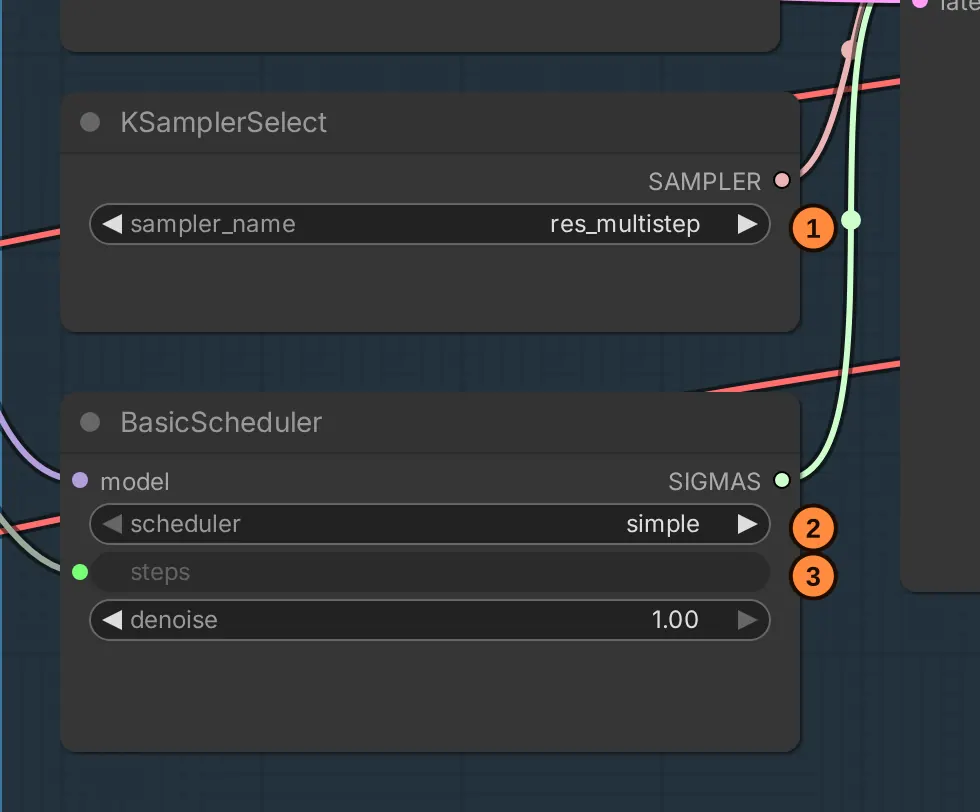
- sampler_name is the sampler,
res_multistep. - scheduler is the scheduler,
simple. - steps is greyed out because it is fed from outside: 20, or the turbo steps when turbo mode is on.
The defaults, in one table
| Setting | Start at | Move it when |
|---|---|---|
| Size | 0.98 MP (768 pixels on the short side) | you are trying ideas quickly, or your card is short of memory |
| Length | 5 seconds | you need more; 4 to 15 s is the model's range |
| Steps | 20 | lower for simple shots, higher for fine detail or a drifting reference |
| Sampler / scheduler | res_multistep / simple | a speed-up model asks for another |
| Shift | 12 video, 3 audio (built in) | a speed-up model asks for another pair |
| CFG | 1 | never, with the stock files |
| Speed-up LoRA | off | time matters more than motion and sound quality |
| Seed | fixed while you change other things | once the prompt is settled |
Size
H3 makes clips 768 pixels on the short side, about one megapixel. MiniMax's card names that as the default and lists shapes from 21:9 to 9:16.
ComfyUI's page recommends 0.98 megapixels for full-quality 16:9 video, which gives 1344 × 768. The round value of 1.0 gives 1376 × 768, which is above the model's size limit. The same holds for upright video at 768 × 1344. The template opens at 0.4 MP; the note under the Resolution Selector lists the size each value gives.
Smaller is the cheapest way to save time, and ComfyUI's page says so. It is fine for checking an idea, but it is not a preview: a different size is a different clip, even with the same seed. Small details, such as a face far from the camera, suffer first.
Larger than the native size is not what the open files are set up for. ComfyUI names a limit of 768 × 1344 pixels, and MiniMax's own route to 2K is not in the open release. ComfyUI's page also notes that more steps will not add sharpness the native size cannot hold.
Length
H3 makes clips of 4 to 15 seconds at 24 frames a second.
The template turns your duration into a frame count on the model's grid, which steps in blocks of 17 frames starting from 5 (5, 22, 39 and so on), rounding up. So 5 seconds becomes 124 frames (about 5.2 seconds) and 10 seconds becomes 243 frames (about 10.1 seconds).
Length costs more than you might expect. The model's attention (the part that relates each piece of the clip to every other piece) grows faster than the clip does, so a clip twice as long takes more than twice as long. Two short clips usually render faster than one long one.
Steps
ComfyUI's templates run 20 steps, and ComfyUI's documentation is unusually specific about when to change that:
- Simple shots hold up at 12 to 16 steps; most of the gain in following the prompt and in motion is in by step 16.
- If a shot has to follow a reference closely and still drifts, go to 25.
- Fine repeating detail (chainmail, lace-like filigree, floral prints, piles of small things) keeps improving up to about 50 steps. Below that, those areas can show a triangular grid pattern that swims as things move.
- Speech converges last. At 8 steps the sound is the weakest part of the clip; from 12 steps it is usable.
Each step runs the whole video model once, so time grows almost in step with the count: 25 steps cost about a quarter more than 20, and 50 about two and a half times as much.
Sampler and scheduler
Every local H3 template from ComfyUI uses the res_multistep sampler with the simple scheduler. res_multistep reuses its estimate from the step before, so 20 steps go further than with a simpler sampler like Euler.
Two things to avoid:
- The
normalscheduler. Users who checked the noise levels report that with H3 it applies the shift (below) twice, so its steps land at the wrong noise levels. Stay onsimpleunless a model's author says otherwise. - Swapping a speed-up LoRA's sampler without reason. Each speed-up file is trained for a schedule. The lightx2v speed-up LoRAs' own examples use
euler; ComfyUI's template keepsres_multistep. Both run; if a LoRA looks wrong, try its author's sampler first.
Shift
Shift makes the sampler spend more of its steps at high noise, where the layout and the motion of the clip are decided.
H3's definition in ComfyUI carries a video shift of 12 and an audio shift of 3, so the template has no shift node: the model supplies its own. With 20 simple steps, those values put 16 of the 20 steps at a noise level of 0.8 or above (out of 1).
You add a shift node (ModelSamplingMiniMaxH3) only when a model asks for other values. ComfyUI's FastH3 templates use 10 and 3, and lightx2v's 768p speed-up LoRAs use 6 and 3. ComfyUI's page warns that an 8-step speed-up build run at a video shift of 3 instead of 10 shows grid artifacts. For the base model, keep 12 and 3.
The detail: a step at time t lands at noise level shift × t / (1 + (shift − 1) × t).
CFG and negative prompts
Leave CFG at 1. CFG is a setting that makes many models follow the prompt more strongly, and MiniMax's released weights have it built in. At CFG 1 ComfyUI skips the extra pass, so a negative prompt (a list of things to avoid) is never used. Raising CFG doubles the work per step, and no maker documents a benefit.
To keep something out of a clip, describe what you want instead. "The table is bare" is safer than "no cups on the table": naming the cups puts them in the prompt.
Speed-up LoRAs
A speed-up LoRA gives a usable clip in 4 or 8 steps instead of 20. Each step costs about the same, so the time saved is roughly in proportion to the steps removed.
The template's turbo_mode (ComfyUI's documentation calls it "Enable Lightning LoRA") loads lightx2v's LoRA and drops the steps to the turbo value: 8 for text and image clips, 4 for reference clips. ComfyUI's page lists the costs: slightly lower sound and motion quality, and at 4 steps a reference can end up barely applied. Its advice for shots that must follow a reference is to leave it off.
Before using any other speed-up LoRA:
- Read its page for steps, strength, sampler and shift, and use exactly those first.
- Check which model it was made for. One made for the unpruned model may lose part of itself on a pruned file; ComfyUI warns of a shape mismatch.
- Compare with and without it at the same seed.
A speed-up LoRA's 8-step clip is not a fast preview of the 20-step clip at the same seed. It is a different clip.
Seeds
The seed sets the starting noise.
- Same seed, same everything: same clip. With every setting, file and node unchanged, a seed should give its clip again on the same setup. So change one setting, keep the seed, and the difference you see is that setting.
- Change anything else and the seed means something new. Another size, step count, sampler or LoRA gives a different clip from the same seed.
While you adjust a prompt, fix the seed. When the prompt is settled, try a few seeds and keep the best.
Attention and other speed tricks
- Sage Attention roughly doubles speed, by ComfyUI's account, by doing the attention in 8 bits. ComfyUI's page links it to morphing near the end of a clip or garbled on-screen text, and suggests the bf16 file with Comfy Kitchen attention as the fix. The same page says Comfy Kitchen attention does not support the
int8_convrotfiles, so with those keep the default attention. - Sparse attention is a built-in node (Model Sparse Attention, ComfyUI 0.35 or newer) that skips part of the attention work; ComfyUI's page advises keeping it out of the first and last steps.
- Step caches (TeaCache-style, first-block caches, EasyCache) reuse earlier steps. Community comparisons report that they change the clip noticeably, sometimes into a different scene. They suit exploring better than final clips.
How much memory each choice needs is in Running H3 on 16, 24 and 32 GB cards.
Sources: ComfyUI's H3 tutorial and native workflow page; MiniMax's H3 model card; the lightx2v speed-up LoRAs at lightx2v/Minimax-h3-Turbo. Screenshots: ComfyUI's stock "MiniMax H3: Image to Video" template (ComfyUI 0.39.2), labels added.